
A companion for the workbench
ShopHelper is a mobile woodworking utility app built around the practical stages of a project: choosing stock, estimating a purchase, planning cuts, setting up, tracking work, and keeping notes for next time. Its nine tools can be used individually, with connections between related tasks.
The app’s project data is stored on your device. You do not need an account to start. Use the App Store or Google Play buttons above to install it, or visit the ShopHelper project page for the feature overview and contact form.
Start with one real project
- Make a project record. Create a Journal entry for what you are building. Add a reference photo or sketch and a short list of tasks.
- Choose the material. Use Wood DB to compare species, hardness, and movement information. Open the relevant Board Ft or Moisture workflow from the species reference when useful.
- Estimate the purchase. Enter lumber dimensions in Board Ft, or add sheet stock and required parts in Cut List. Set prices and waste assumptions deliberately.
- Organize the shopping. Keep lumber, sheets, and hardware in their Shopping categories. Review quantities against your current design.
- Prepare the cuts. Set sheet dimensions, trim, blade kerf, quantities, and rotation constraints in Cut List. Inspect the layout, then export the cut-map PDF.
- Record the build. Run a named timer, check tasks off, and add finish notes and photos to the Journal. Those details make the next similar project easier.
You can start much smaller: use the fraction calculator for a single measurement or the Level for a setup check without filling out a whole project first.
Wood DB: choose and understand your stock
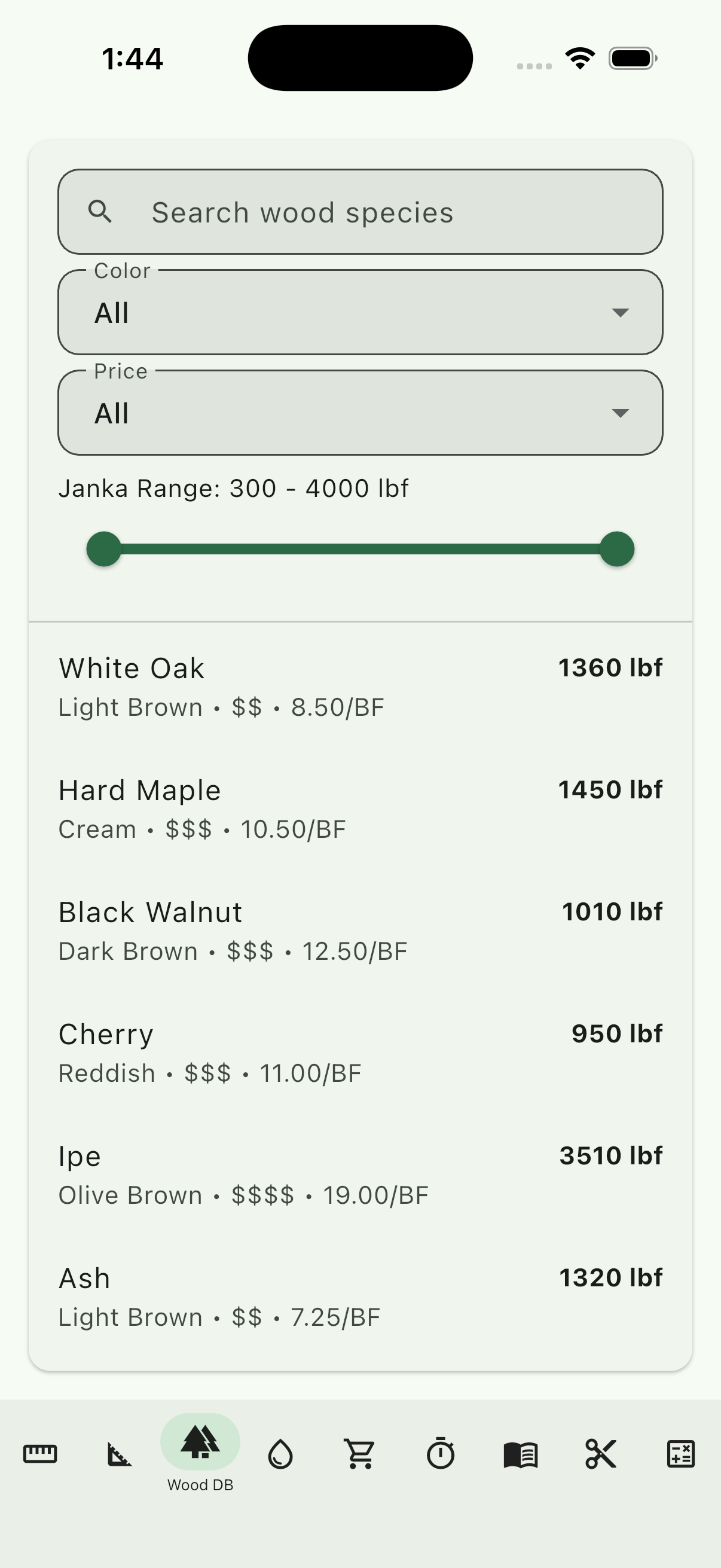
The Wood Database lets you compare species using colour, price, and Janka hardness filters. Open a species to read its properties, grain information, and shrinkage data. Technical-property and gallery views support both quick comparisons and closer inspection.
Janka hardness helps compare resistance to denting; it is not a general rating of whether a species is the best choice for a project. Consider appearance, availability, price, intended use, and movement together.
The movement calculator helps you think about seasonal dimensional change. Use it while deciding how a solid-wood panel will be attached or how much movement an assembly must accommodate. The stability gauge and shrinkage figures are reference information, not a replacement for checking your stock.
Species links connect the reference to Board Ft and Moisture, reducing repeated data entry. Treat reference prices as estimates and enter the actual supplier price when planning a purchase.
Board Ft & Shopping: estimate, tally, buy
Board Foot Calculator
Use lumber mode for board dimensions and log mode for Doyle log estimates. Lumber planning includes quarter-scale thickness, rough-versus-surfaced handling, waste allowance, and a tally for multiple pieces. Enter the correct units and stock condition before trusting a total.
For a simple check, a board measuring 1 inch thick, 6 inches wide, and 8 feet long contains 4 board feet before waste. That is a volume calculation, not a count of usable finished pieces. Milling, defects, and the project’s cutting pattern change how much you need to buy.
Add pieces to the tally, review price and tax, and use the grand total to plan the purchase. Weight estimates use species density from Wood DB. Doyle estimates are a separate log-estimation workflow and should not be treated as a direct finished-lumber measurement.
Shopping List
Keep lumber, sheets, and hardware in their separate categories. Add, edit, delete, and check off items as the shopping trip progresses. Sheet and panel information can move between Shopping and Cut List; review the imported quantities and dimensions before optimizing or buying.
When a design changes, update the affected list. A tidy checklist only helps if it still describes the version you intend to build.
Cut List: plan the sheet before cutting
- Enter the available sheets. Use the actual sheet dimensions, quantities, and cost. Import sheet information from Shopping when you have already recorded it there.
- Add the required parts. Check length, width, quantity, and any rotation restriction. Grain direction or a visible face can make an otherwise efficient rotation unsuitable.
- Set kerf and trim. Kerf is material removed by the blade; trim reserves the margins you plan to remove. These affect whether a layout can fit.
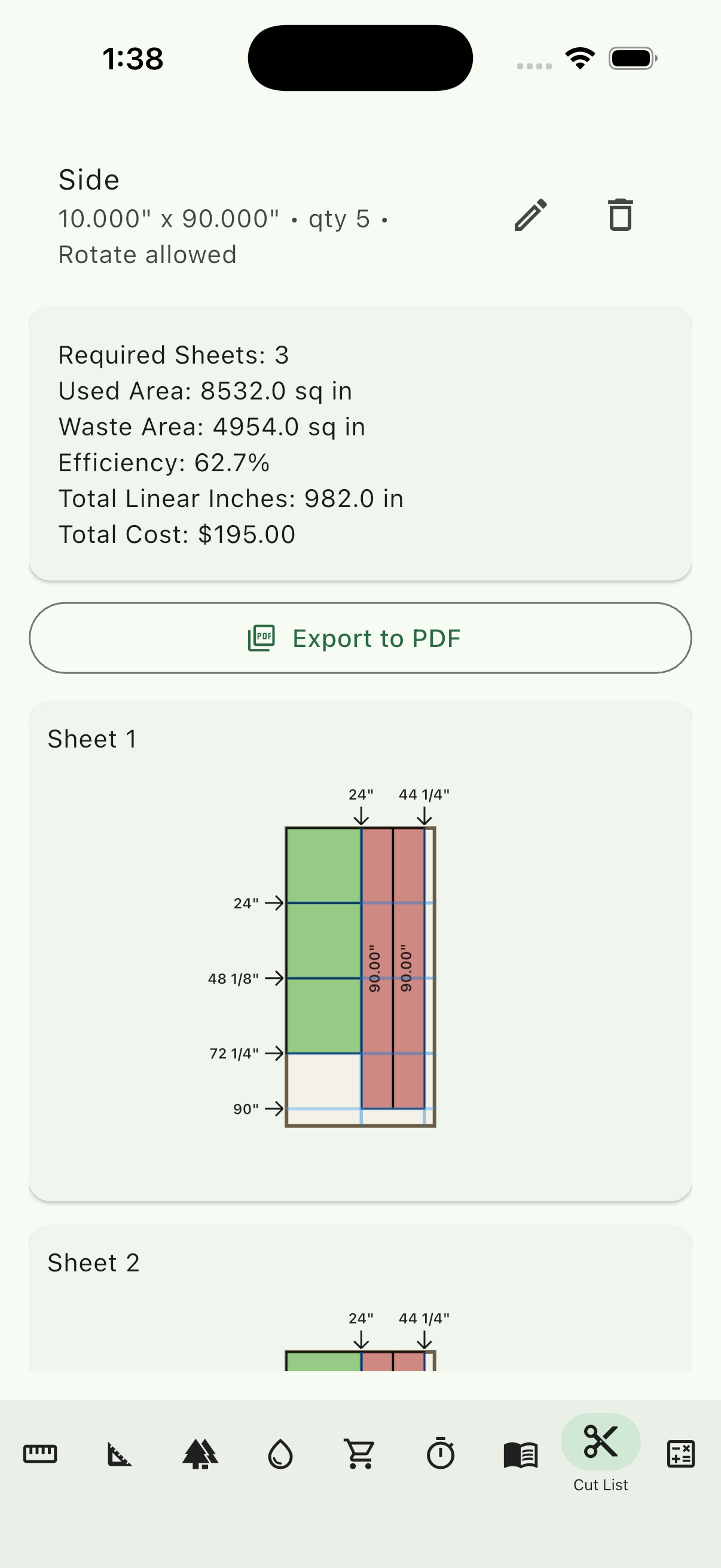
- Optimize and inspect. Review coloured part placements, required sheets, efficiency, and total cost. Use the full-screen cut editor when you need a closer look.
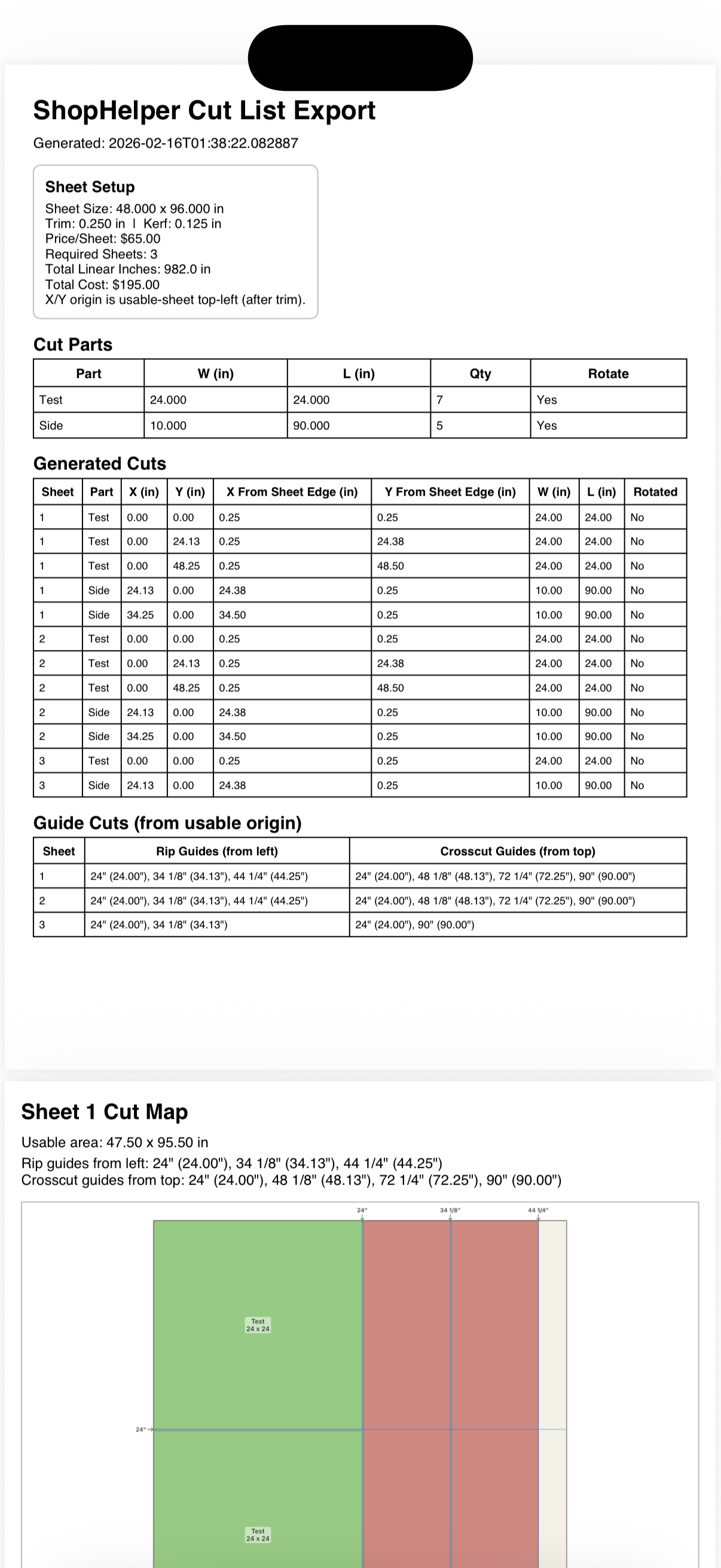
- Export and follow the references. The PDF includes cut maps and inch-referenced coordinates. Identify the sheet and reference edges before transferring measurements to the stock.
If a layout is not useful, check the input dimensions, part quantities, margins, kerf, and rotation constraints before changing the design. The optimizer helps organize material; choose a cutting sequence that suits the tool and workholding you actually have.
Level & Fraction Calculator: setup and small calculations
Digital Level
The Level reads the phone’s motion sensors to display pitch and roll. Use relative zero to make a chosen surface your reference, then compare the next surface to it. High sensitivity, a target-zone overlay, and haptic tolerance cues help with small adjustments.
Place the phone consistently. A camera bump or case can change how it sits, and the reading depends on the phone’s sensors and contact surface. Check the setup against an appropriate physical reference when accuracy matters.
The optional Crown Moulding Compound Cuts panel supports corner-angle and spring-angle miter/bevel calculations. Confirm which angle you measured and how the moulding will sit before using the result.
Fraction Calculator
Work directly with woodworking fractions using addition, subtraction, multiplication, and division. The calculator includes history and free-form expressions, making it useful for repeated spacing, remaining lengths, and divided measurements. Review the expression as well as the answer when mixing whole numbers and fractions.
Moisture: readings, context & trends
The Moisture tool records readings you enter; your phone does not become a wood moisture meter. Take the reading with an appropriate meter, select the species, and use the species-linked density correction and project grouping consistently.
Record ambient temperature and humidity alongside the reading. The optional weather-assisted inputs fetch local conditions. The app uses this context for equilibrium moisture content (EMC) and stability information, while history and the trend sparkline help you see how readings change.
A useful record compares the same stock under similar measurement conditions over time. Add enough context to distinguish a new piece from a repeat reading. A single number without species or ambient conditions can be difficult to interpret later.
Timers & Journal: remember how you made it
Time Tracker
Create named timers for the jobs you want to measure. Multiple timers can be managed independently, with save, reset, and delete controls. Running overlays help you keep track while using other parts of the app.
The Journal integrates project timer controls and a floating session timer. Name a timer for the task—such as milling or finishing—if you want the saved record to explain where the time went.
Finishing Journal
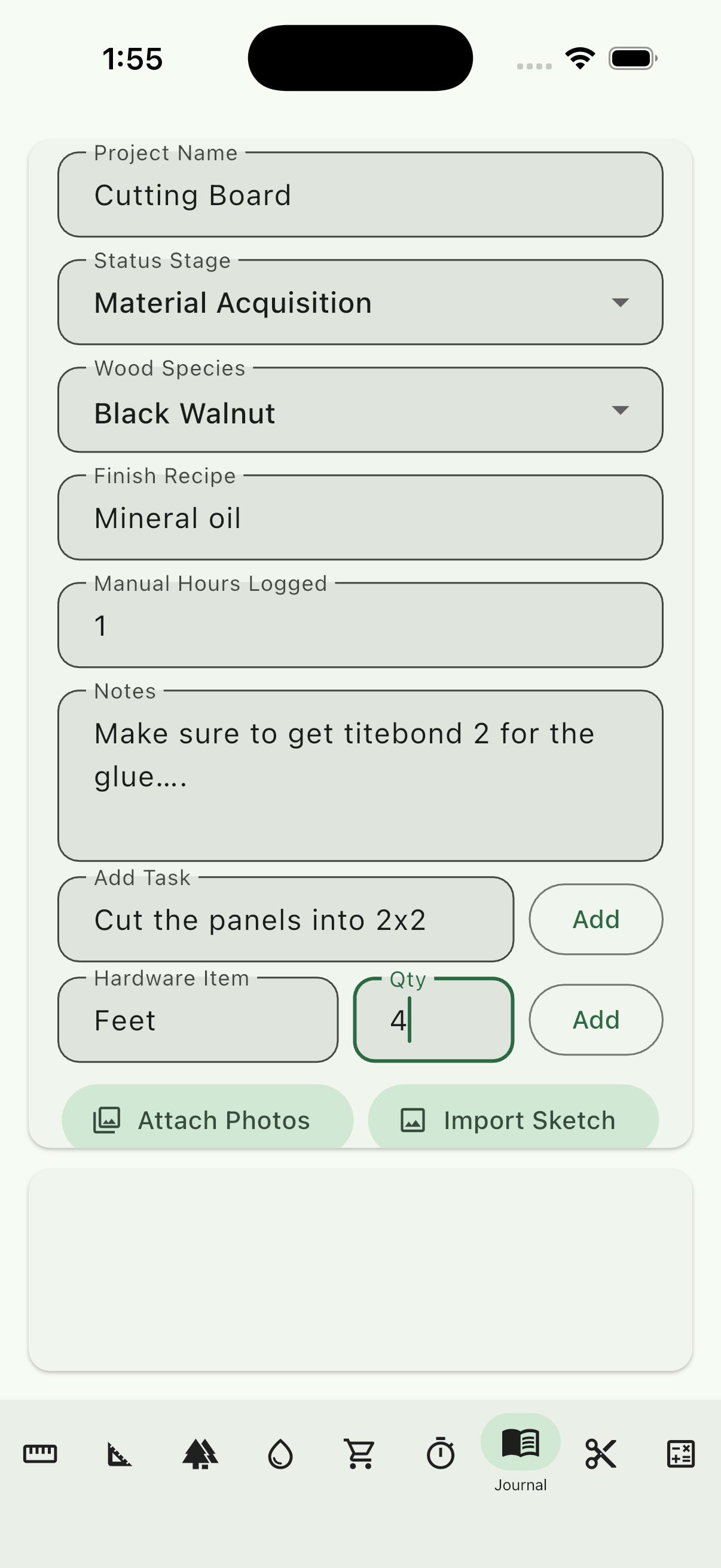
Keep project status, finish recipes, hardware, tasks, photos, and sketches together. Open a full-screen project detail to work through an entry and edit saved information as the build changes.
Use photos or sketches to record details that are easy to forget: hardware placement, a successful finish sample, or the order you assembled parts. The sketch marker canvas supports structured dimension markers. Pair those marks with clear notes so a future version of you can tell what was measured.
At the end of a project, record what you would repeat and what you would change. A finish recipe and a photo of the result are more useful together than either is alone.
Your data, permissions & support
User-entered project records, calculations, lists, timers, and history persist locally across app restarts. Local storage is not an account-based backup or automatic sync between phones. Keep exported PDFs and any important project references separately before changing devices or removing app data.
Camera and photo access are used when attaching images. Motion sensors support the Level. Optional weather lookup sends approximate location to the weather service when requested. The app also uses Google AdMob, which has its own data practices.
Read the ShopHelper privacy policy for the full details. For a question or bug report, use the contact form and include the affected tool, your phone platform, what you entered, and what you expected to happen.
Common questions
Does the phone measure moisture in wood?
No. Enter readings from a wood moisture meter. ShopHelper helps organize readings and their species and ambient context.
Why does the cut layout need more sheets than I expected?
Review dimensions, quantities, kerf, trim margins, and rotation constraints. All consume or limit usable sheet space.
Are my projects automatically on my new phone?
There is no account-based cross-device sync described by the app. Keep important exports and records separately before moving devices.
Can I use only one of the tools?
Yes. Each tool can be useful on its own. The cross-tool links help when you want a broader project workflow.