
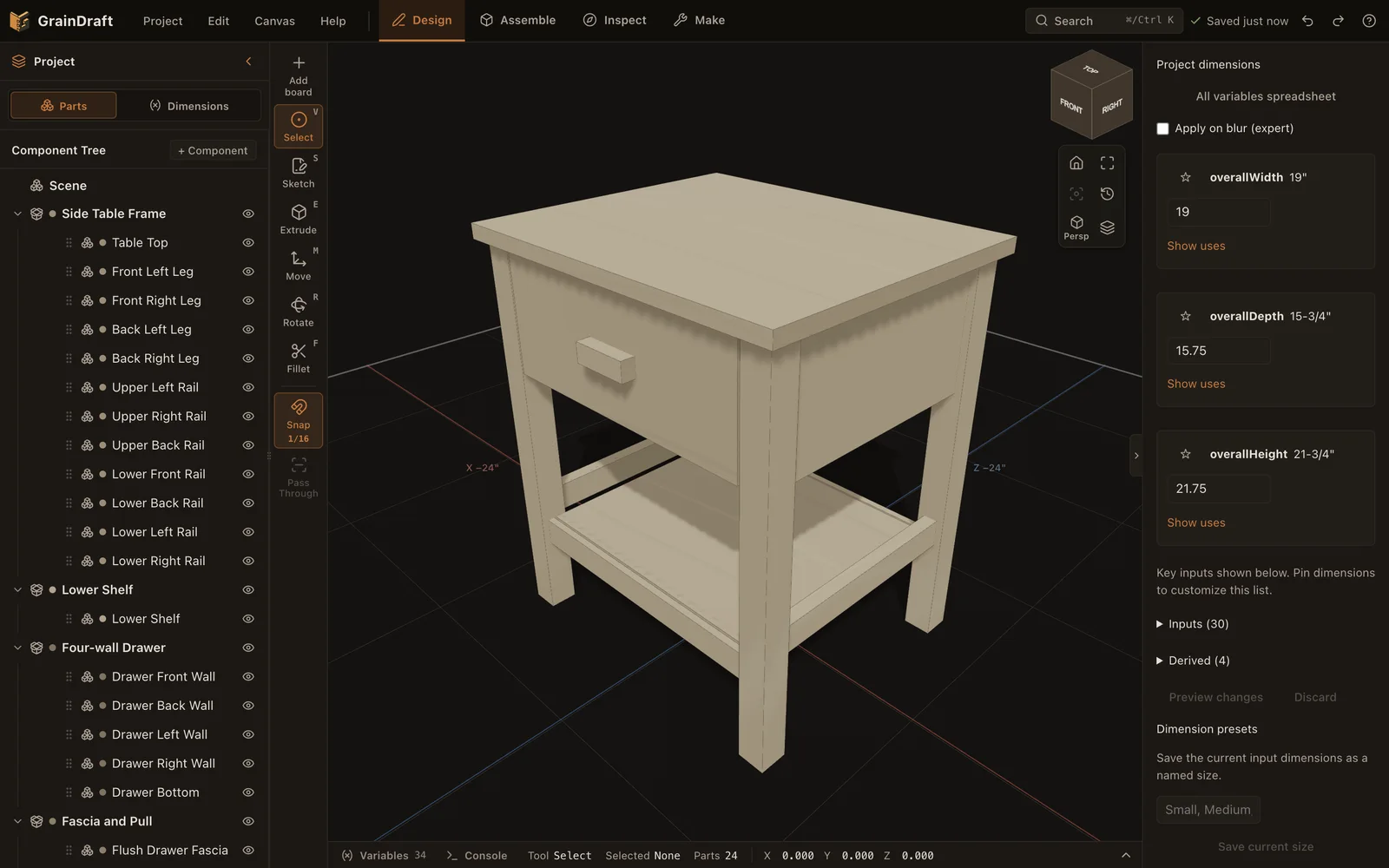
What GrainDraft is for
GrainDraft is for planning how a wooden object will actually be made. A board has dimensions and a material. A connection has an acting part, a receiving part, and cuts that belong to each. A drawing or cut list comes from that model, so the planning work stays connected.
Use it for furniture, frames, drawers, cabinets, and other projects assembled from stock. Start from simple boards or editable sketches, then build up the relationships that make revisions easier. It is especially useful when changing an overall dimension should also change the parts that depend on it.
The working environment has four workspaces: Design for parts and dimensions, Assemble for connections, Inspect for checking the result, and Make for shop outputs. Think of them as successive questions: What am I making? How does it fit? What needs attention? What do I take to the bench?
Your first project
- Open the app and protect existing work. If you already have a project, save a named copy through Project → Open and download a project backup before starting an exercise.
- Start small. Use the side-table walkthrough on the GrainDraft website, or practice with a rail and a leg. A small assembly makes it easier to understand each connection.
- Name the parts. Give each board a useful name, material, and actual dimensions. “Front rail” is easier to find in an assembly than an unnamed duplicate.
- Make one connection. Switch to Assemble, select the intended parts, confirm their faces, and preview a joint before adding it.
- Inspect the inside. Look at a section or exploded view. Check the receiving cut and remaining stock, not only the outside shape.
- Export a small result. Review a cut list or shop packet for the practice model, then download the project itself so you can reopen and edit it later.
For a guided example, follow the side-table walkthrough or the two-board first-joint exercise.
Design: boards, sketches & dimensions
Begin with stock
Add a board or panel by entering its name, material, and dimensions. It becomes an editable sketch and extrusion. Use actual intended stock dimensions, including finished thickness, so later joinery and material calculations are based on the piece you mean to build.
Work in familiar measurements
Dimension fields accept woodworking fractions such as 15 3/4. Fractional and decimal display are available; an approximation mark indicates a rounded display value. Check the underlying dimension when a fit depends on a precise value.
Make relationships explicit
Named inputs and formulas let dependent sizes follow a project dimension. Preview the affected parts and joints before applying a change. Size presets let you compare named sets of inputs. A model can only preserve a relationship that has actually been defined.
Shape and organize
Sketch lines, rectangles, circles, arcs, polygons, slots, and splines. Close and dimension a profile, then extrude it into stock or use it to make a cut. Move parts with exact distances, organize related pieces into components, and use supported duplicate, pattern, or mirror operations for repeated parts.
Cmd/Ctrl K opens command search. Search is also useful for locating a board by name, material, joint, or machining operation as the model grows.
Assemble: make both halves of the joint
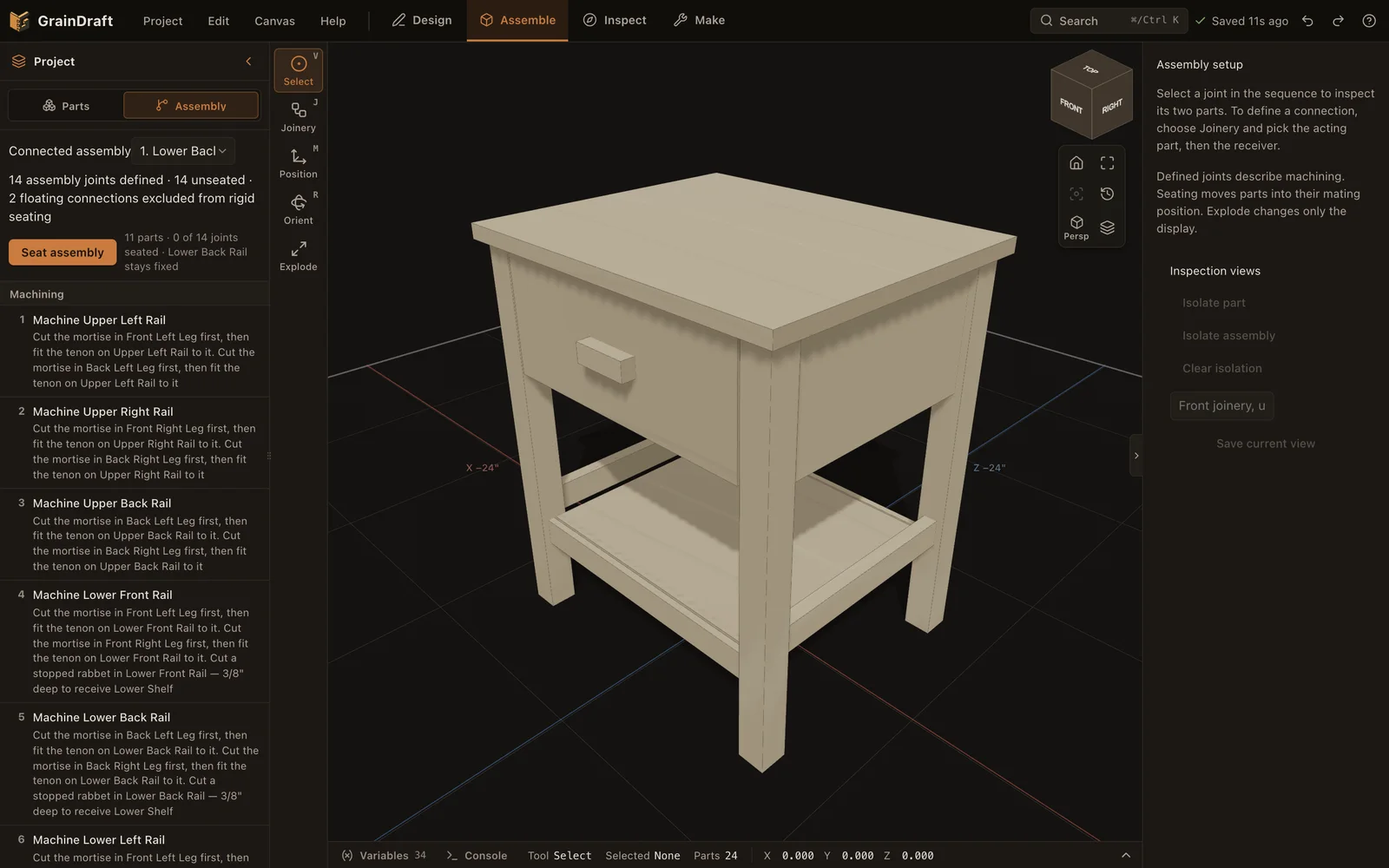
GrainDraft supports mortise and tenon, box, mitre, dado, rabbet, half lap, pocket hole, and screw connections. Choose the family that matches the construction, then verify the acting and receiving boards and their faces.
- Select the two intended parts and open Joinery in Assemble, or use J.
- Read the named faces. Swap the acting and receiving parts if they are reversed.
- Choose the joint family and review its dimensions and validation messages.
- Use Preview both cuts. Compare assembled, exploded, and section views before creating the joint.
- Add the joint, then use the seating controls to assemble the intended connected group.
A named fixed anchor keeps an assembly’s reference part clear. A display-only exploded view helps explain construction; it is different from changing the physical seating of the group.
After changing stock thickness or an overall size, inspect the joint again. Look for the intended shoulder contact, adequate remaining material, and a workable assembly direction.
Inspect: read what the model is telling you
The Inspect workspace collects findings and helps you focus the parts involved. Review errors and warnings first; informational notes provide additional context. Where a correction is offered, preview its before-and-after values and validation result. Apply fix is the step that actually changes the joint.
Use a section to see a mortise, pocket, or other hidden cut. Explode an assembly to understand where pieces meet. Orthographic front, top, and side views help compare alignment without perspective distortion. Fit the selection when a small joint is difficult to find inside a large piece.
Save an inspection view if you will revisit the same area. A named view can retain camera, isolation, section, and explode state, or serve as the project’s opening view.
Make: from model to shop information
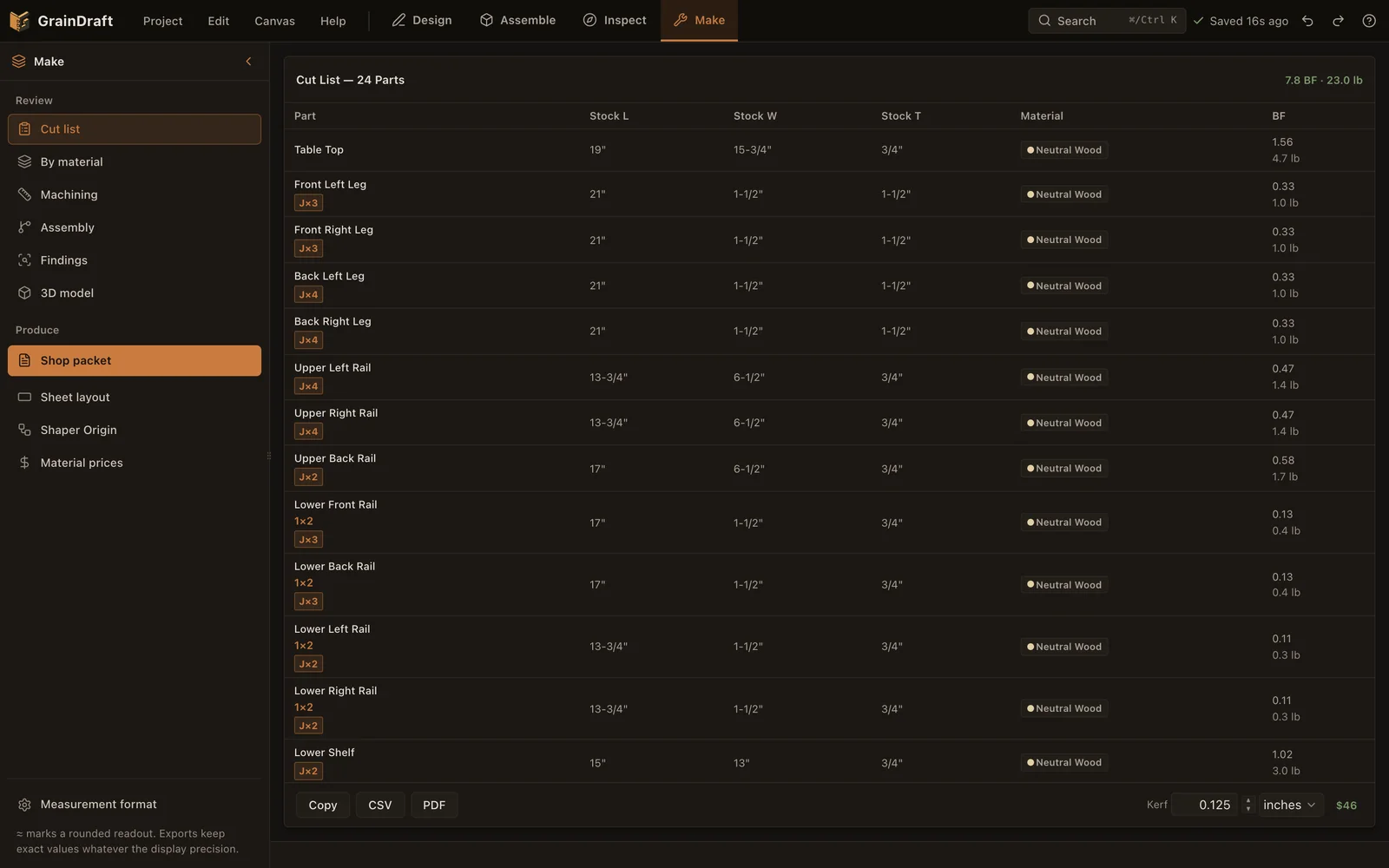
| Output | What it is useful for |
|---|---|
| Cut list · CSV / PDF | Reviewing stock length, width, thickness, material, and board footage. |
| Material estimate | Planning purchases with species prices, board-foot pricing, or linear-foot pricing. |
| Sheet layout | Arranging plywood or MDF parts on sheets, with kerf and a list of parts that do not fit. |
| Shop packet | A build guide with shopping, cutting, part layouts, machine setups, and glue-up order. |
| Shaper Origin SVG | Supported operation-specific cut files, with setup previews, depths, and datum anchors. |
| STL / OBJ / glTF | Finished mesh geometry for downstream viewing or geometry workflows. |
The default shop packet follows the order of work. Part layouts locate joints from a marked corner, machine setups group similar settings, and assembly information helps plan glue-ups. Choose the output appropriate to power tools, hand tools, or supported Shaper Origin work.
Read omitted-operation lists and parts that do not fit rather than assuming every export contains every operation. Mesh exports are geometry, not a replacement for machining instructions. For Shaper Origin, verify the exported setup and settings on the tool before cutting.
A sensible revision workflow
Suppose a side table needs to be taller. Save a named copy first, then change the declared height input in Design. Preview which parts and joints will move or resize, and resolve incompatible dimensions before applying.
After applying, revisit the connected assembly in Assemble. In Inspect, check joints near changed parts and compare a section view with the original. In Make, regenerate the cut list and shop packet so the paperwork matches the new model. Finally, download the revised project.
This routine is useful for changes to width, depth, stock thickness, or drawer size too: change → preview → apply → inspect → regenerate outputs. Do not keep building from a PDF exported before the last design revision.
Save, back up & move between devices
GrainDraft needs no account or installation. Projects are stored in your browser on this device. Use named project copies to keep alternatives distinct, and download a portable project file for backups and transfers.
A downloaded project file preserves editable work. A PDF is a shop document; a mesh export is a geometry file. Neither replaces the editable project backup.
Clearing browser data may remove local projects. Download a backup before changing computers, clearing storage, or experimenting with a design you want to keep. To continue elsewhere, bring the portable project file to the other device rather than expecting automatic cloud sync.
Common questions
Where should a beginner start?
Use the two-board joint exercise to learn selection and joint inspection, then follow the side-table walkthrough for a complete project. Save existing work before either exercise.
Why did a dimension change not resize everything?
Dependent parts need declared formulas or relationships. Review the model’s inputs and the preview of affected parts; a visual arrangement alone does not define a dimensional relationship.
Does GrainDraft create a load-rated furniture design?
The tool helps model and inspect construction. Fit checks do not certify strength or establish a finished piece’s load rating.
Is the browser save also a backup?
It is the working copy on that device. Download a portable project file to keep an independent backup or move your design elsewhere.